Markdown, Mermaids, Monsters
RTFM (Read the Fabulous Manual) We've all heard this often condescending acronym used in the tech industry. As obvious as it is, a directive to the "source of truth," a big stumbling block to achieving that truth is the difficulties involved in developing, publishing and maintaining that truth.

What follows are my comments, observations and opinions regarding a journey of discovery. Exploring Documentation Monster turned out to be both interesting and a path to greater productivity and documentation quality. Opinions are my own. I am in no way affiliated with Westwind Technologies.
RTFM (Read the Fabulous Manual)
We've all heard this often condescending acronym used in the tech industry. As obvious as it is, a directive to the "source of truth," one of the big stumbling blocks to achieving that truth is the difficulties involved in developing, publishing and maintaining that truth. In other words, documentation ideally has the following general characteristics:
- Enablels easy development
- Supports structured content
- Permits inclusion of graphic contents
- Is easily published or disseminated
- Enables easy access by the target audience
- Facilitates rapid and accurate maintenance as needed changes and enhancements are uncovered
- Supports auditing efforts in use cases where policy or legal requirements demand historical accuracy
As a final characteristic it should also be noted that whatever path is chosen to develop documentation,
- Eases the learning curve for development. E.g., The learning curve should minimize the cognitive load required for development.
My Motivation
I have always found on-line documentation using a topic tree to be an appealing way to organize and present information. Unfortunately, many existing tools make development of that format difficult—it becomes a substantial development effort in its own right. Adding to that additional work flow friction is the difficulty of actually presenting or publishing the finished product. Documentation Monster seemed to offer some viable solutions to those concerns, so I decided to dig a little deeper.
Exploring Documentation Monster
Let's start by observing that Documentation Monster is a seven-syllable name. I'll frequently abbreviate that to simply DM (Documentation Monster acronym) to avoid repeating all those syllables frequently.
Expectations
Documentation Monster is a Windows based, Markdown-driven tool that permits creating, management and publication of documentation appropriate for many different application domains. Although intended for a technical audience, I quickly realized that it can be used in many other application domains.
I'm already an avid user of another Westwind Technologies product, Markdown Monster. Hardly a day passes that I don't launch Markdown Monster to take notes, create documents, or save website content I discover. I use a browser extension that will copy highlighted text from a web page as Markdown. The copied Markdown is easily pasted into the Markdown Monster editor. Documentation Monster is based on the Markdown Monster editor, so I decided to take a closer look to see what developer Rick Strahl had come up with.
Installation
I downloaded the fully functional trial version of DM and proceeded to give it a workout. Here's what I discovered.
Note that you can either download the DM installer or use Chocolatey to install it. I found that the downloaded installer was newer and had improvements not found in the Chocolatey version I first tried. I recommend using the downloaded installer rather than Chocolatey.
Installation is fast and easy. Once you've installed DM you're ready to begin.
Creating a Project
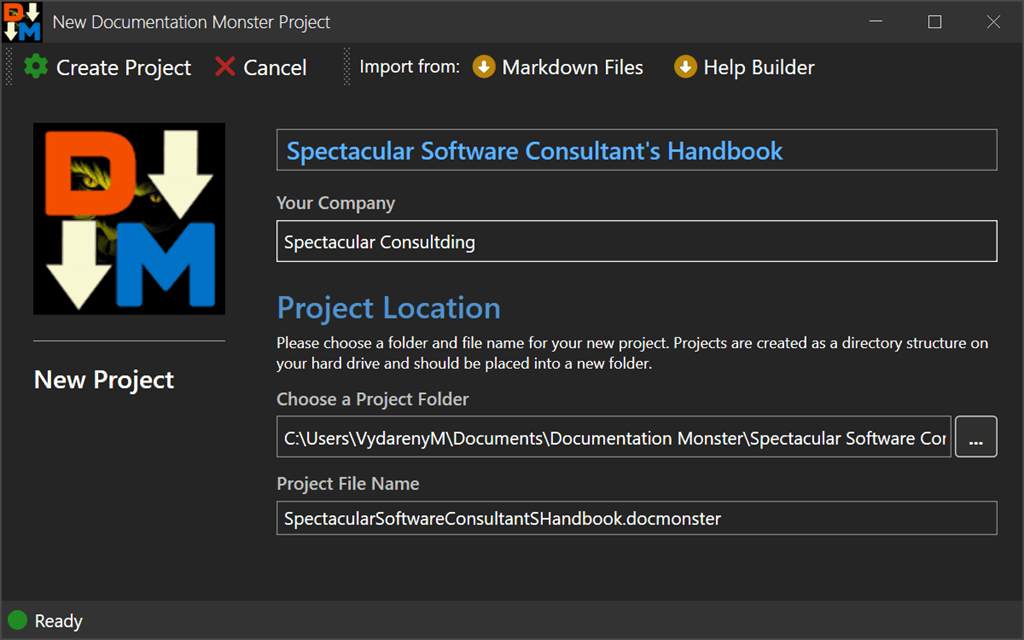
You must create a project to contain your documentation.
- Choose or create an empty folder to contain the project.
- Launch Documentation Monster
- Choose Create Project from the main screen
- Complete the New Project creation dialog and choose Create Project from the dialog's upper left corner.
Notes: When DM creates a project in an empty folder, it is actually creating a Git local repository. As we'll see later, this enables you to take advantage of Git with a minimum amount of friction. I also discovered that it is much easier if you create your project in a folder on a local hard drive; don't use a network drive. Git has trouble with network drives so I recommend avoiding them for this scenario.,
DM will use the Project Title you enter to suggest a project folder name using a default path and a suggested project file name. You can override these specifications if you desire. I recommend using the suggested values.
Everything required by the project will be contained in that single project folder.
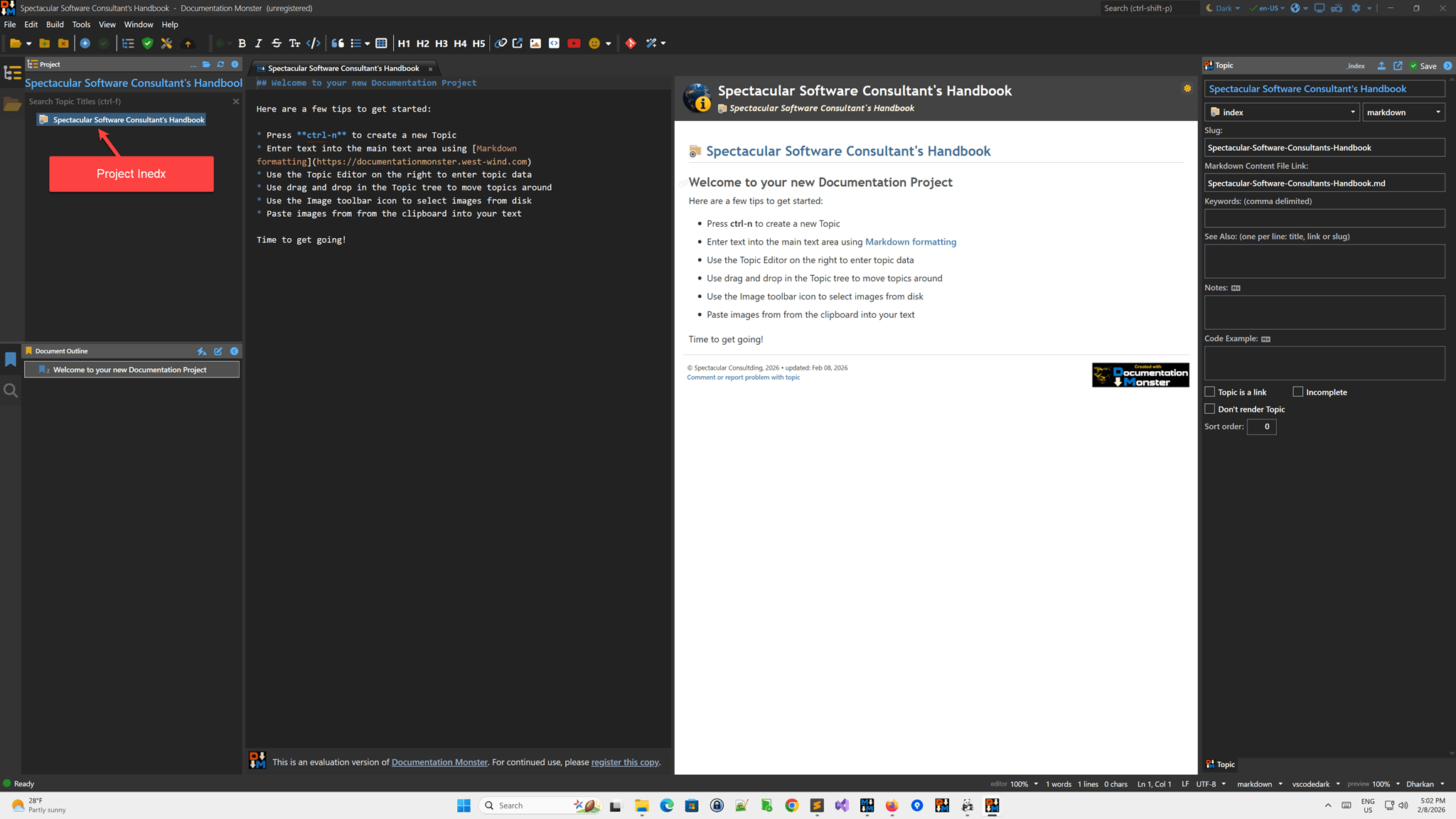
After the project is created click on the topic title as shown in the following screen shot to display project index. The index contains some helpful hints about how to proceed with constructing your documentation.
Creating Topics
A documentation project is a collection of topics arranged hierarchically, starting with the root project index folder established when the project was created. For each topic you want to add to the documentation tree, follow these steps.
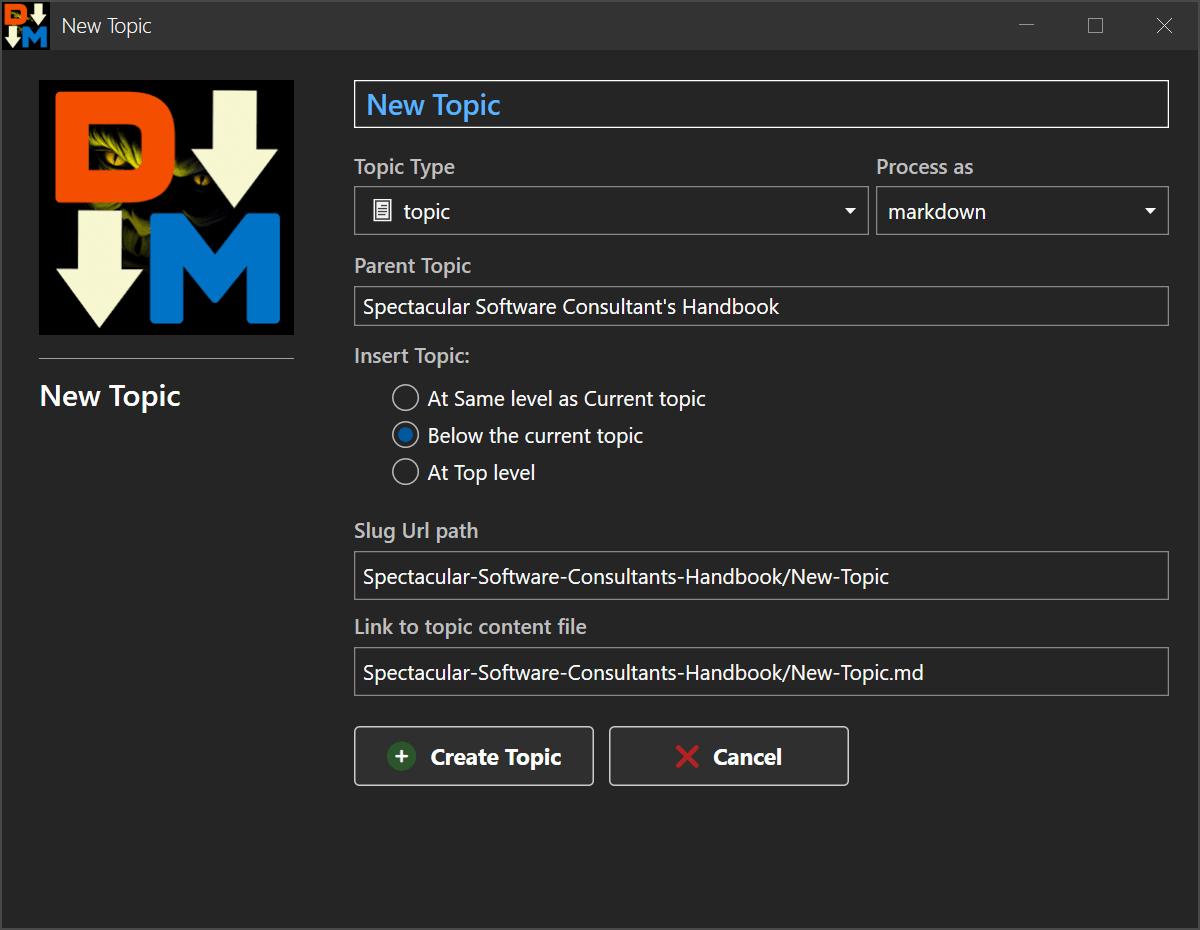
- Click on the New Topic button at the top left of the DM window.
- Complete the New Topic Dialog box entries. Entering a topic name will result in DM suggesting values for the remaining items that you may override.
- Click the Create Topic button to create the topic. It will appear in the Topic Tree.
- Enter Topic Metadata in the panel on the right side of the DM window.
- Enter the topic text in the Markdown edit window.
- Add graphics and images as needed.
- View the topic as it will be formatted in the live preview window.
Repeat these steps until you have added all your topics to the project.
Document Monster Main Window
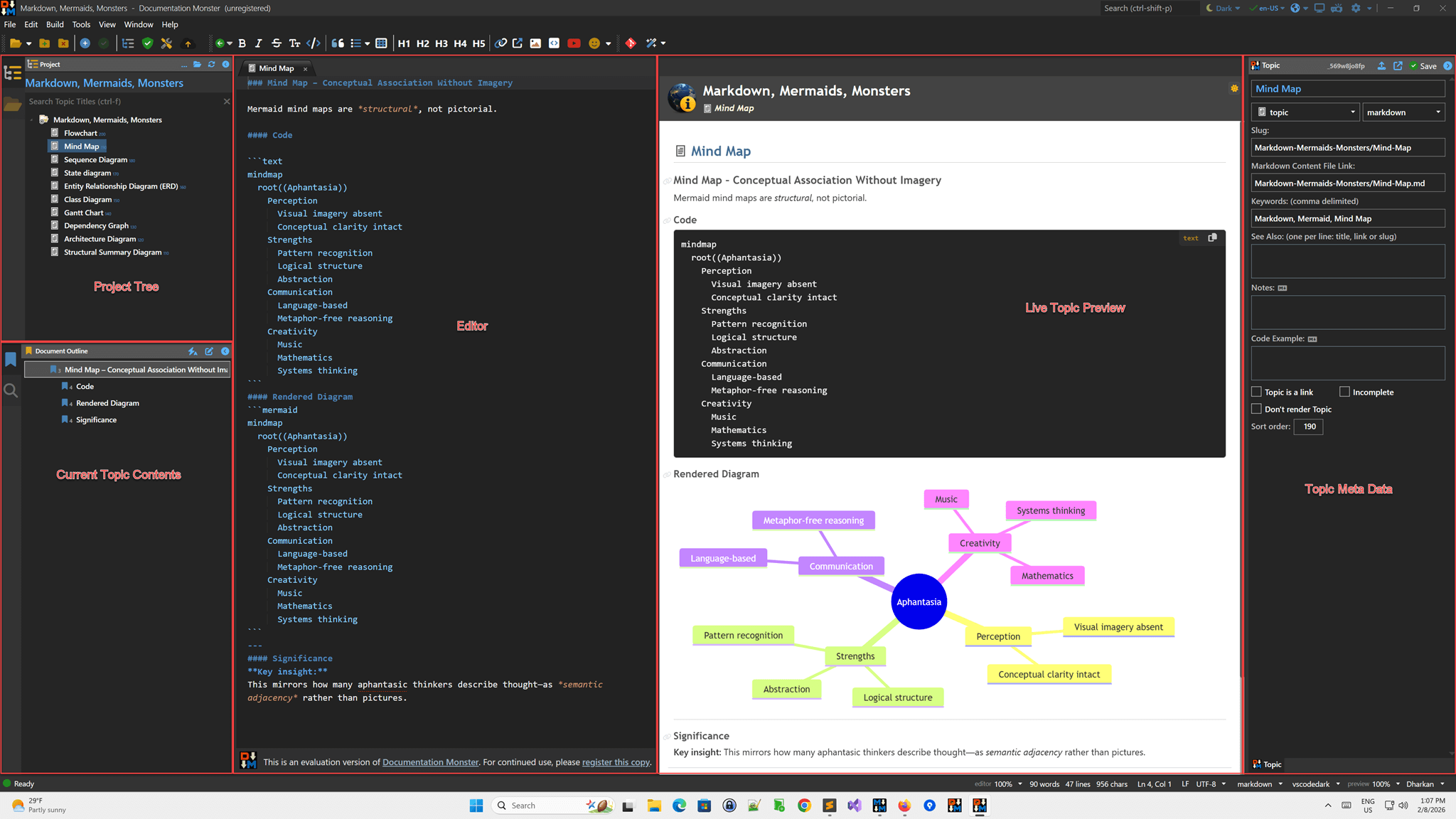
The Document Monster Main Window consists of five principal regions along with the customary task, menu and status indication bars.
Here's a screen shot of a demonstration project I produced using Documentation Monster: You can view the project as a web site at Markdown, Mermaids, Monsters. The Public Github Repository for the demo project can be downloaded from Markdown-Mermaids-Monsters
Building the Documentation
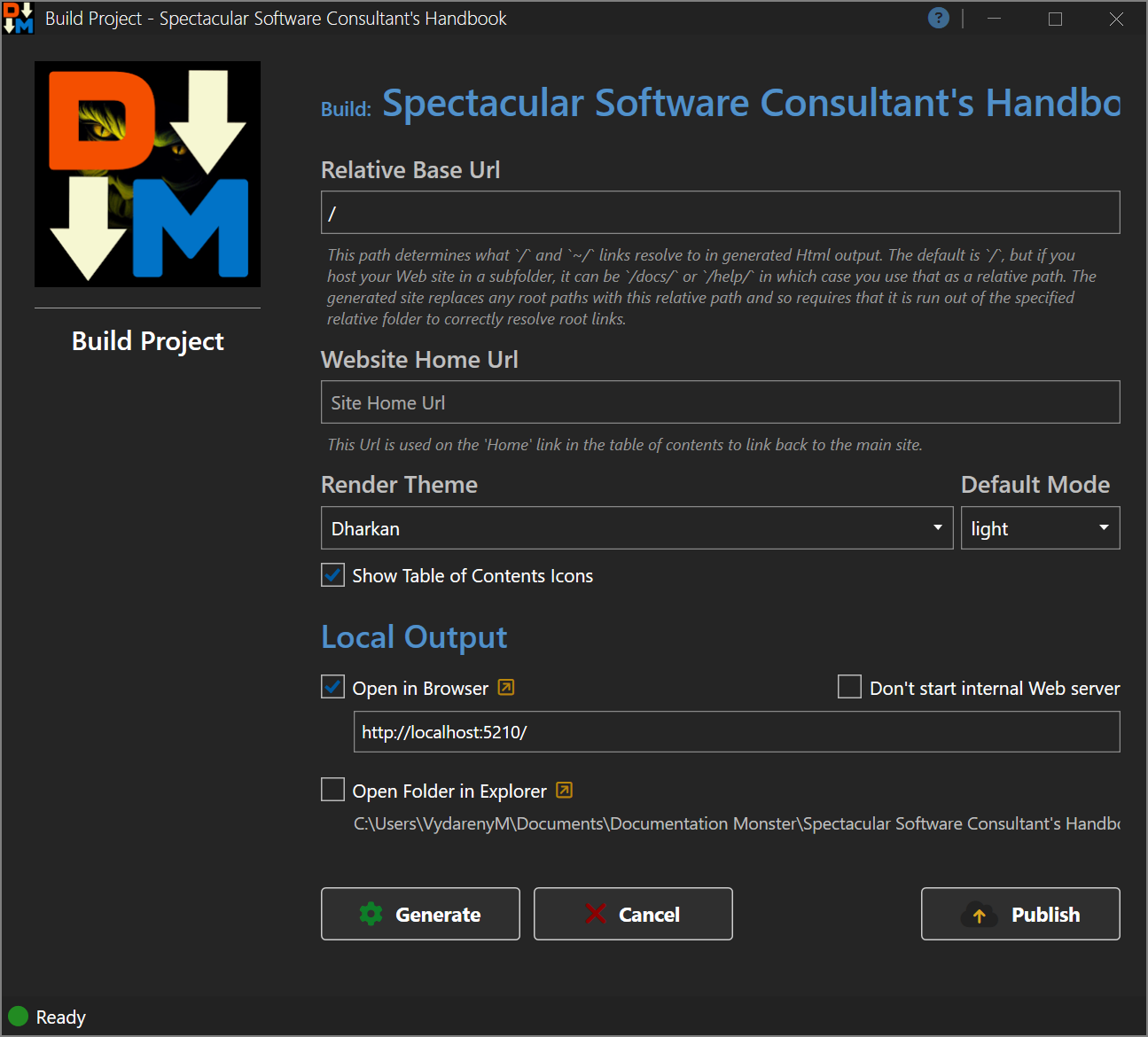
Before the documentation can be displayed or deployed it must be built. To do that choose 'Build' from the main menu to display the Build Options.
- The Relative Base Url is used in cases where your documentation is a sub-folder of the website. A description of its use appears in the dialog.
- The website Home URL is used to link the documentation back to the main website.
You can elect to display the documentation in a local webserver, that DM will use to display the documentation. This can be a convenience if you want to quickly proof the current state of your development rather than actually deploying the documentation to an active website.
Click the Generate button to generate the documentation and possibly display it using the internal Web Server.
Here's a screen shot of the Build Project screen.
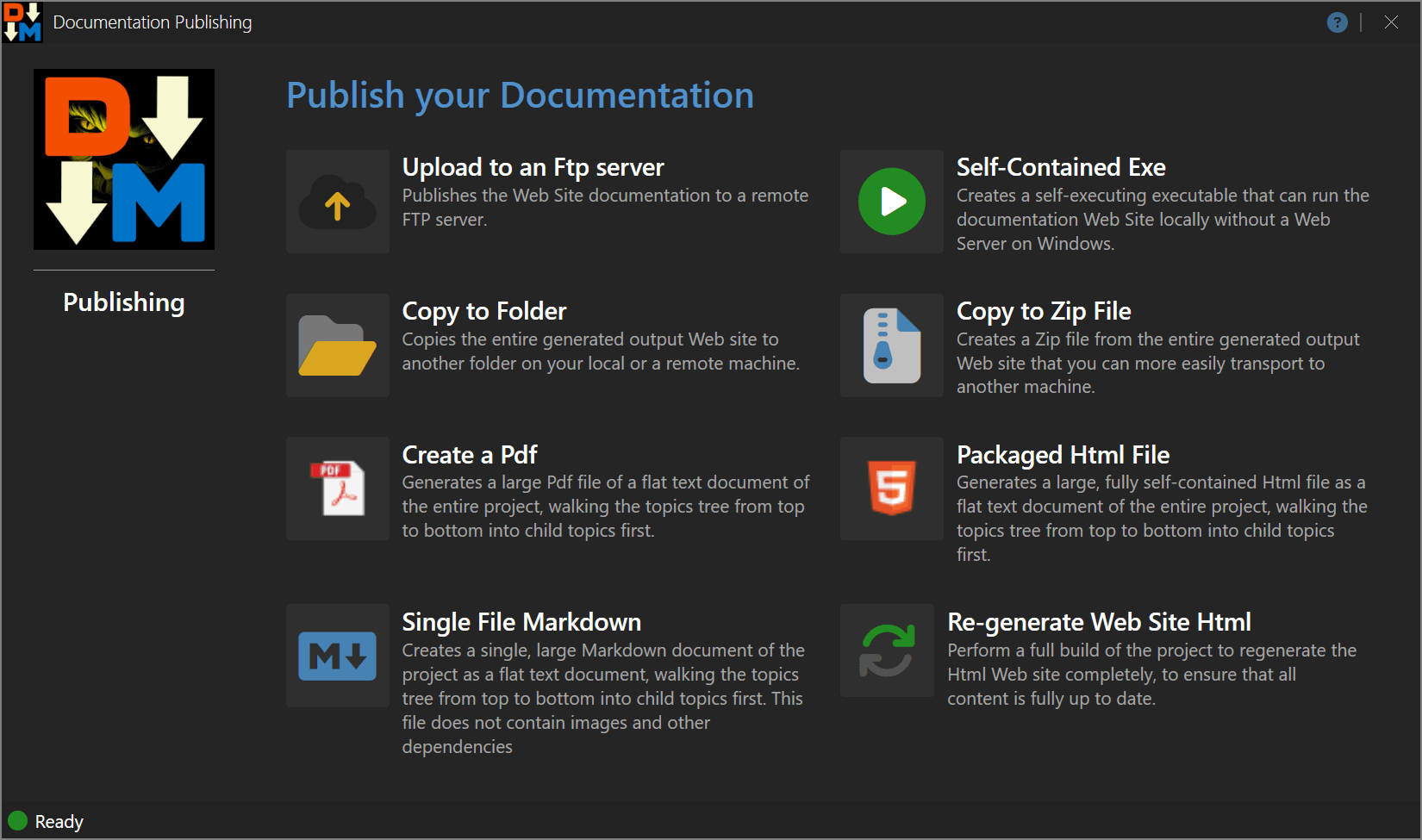
Publish the Documentation
Publishing is a matter of selecting the desired target location and format needed to deploy the documentation.
From the Build Project dialog, select the Publish button to display the options. Choose the options that suit your deployment needs.
Git Integration
A Documentation Monster project folder is, in fact a Git repository. This makes integration of a DM project easy and straightforward. There are a couple of ways to accomplish this.
File->Git->Attach to Remote Git Repository... dialog to Attach your DM project to an existing Github (or similar service) remote repository.
If you're an SourceTree user, use the SourceTree Add->Remote... function to accomplish the same result.
Git functionality is also built in to Documentation Monster and may be accessed from the File->Git main menu item, or by choosing the Git tool button in the tool bar.
Markdown Extentions
Since Documentation Monster is based on Westwind's Markdown Monster a number of useful Markdown extensions are implemented. The ones I tried are:
- Mermaid support. Mermaid is a Javascript Diagramming package that offers a number of useful diagrammming possibilities. The Demo Project mentioned earlier uses a subset of the possible Mermaid diagrams. More information about Mermaid can be had at Mermaid website
- Plant UML support. PlantUML is a highly versatile tool that facilitates the rapid and straightforward creation of a wide array of diagrams incluuding UML and non-UML diagrams as well as Mathematics with AsciiMath or JLaTeXMath notation.
- Admonitions Admonitions are used to create visually distinct text blocks (like notes, tips, and warnings) that stand out from the main content.
Markdown Monster also supports a Math extension that I was not able to get working during my explorations of Documentation Monster, perhaps because Plant UML's powerful math support can be used in place of it.
Some Use Cases
Documentation Monster's target audience is technical users. This includes developers and systems designers who need to communicate rapidly, accurately and clearly. But that's only one use case for a tool like Documentation Monster.
Here are some other use cases you might consider:
- Product Documentation (All kinds of products, not just IT software.)
- Employee On-Boarding
- Corporate Policy Handbook
- Educational Materials of all kinds, Liberal Arts, Science, Arts
- Legal and Regulatory information
- Job Descriptions and Responsibilities
- Field manuals, where a mobile device provides access to large amounts of reference material
Some Caveats
- Documentation Monster is current a Beta release. Some rough spots exist that are being resolved via Westwinds' bug reporting and feature request structure.
- I found Documentation Monster's Help documentation to be occasionally thin. It is also a work in progress and will undoubtedly improve over time.
Summary and Conclusions
For me, Documentation Monster shows great promise. I place high importance on documentation, both embedded in the code I write, as well as externally, whether targeting other developers or users of my finished efforts. Documentation Monster has already shown its ability to:
- Streamline and organize the documentation development effort
- Support structured content
- Permit inclusion of graphic contents
- Rapidly publish or disseminate the finished documentation
- Provide convenient and rapid accessibility by the target audience
- Track and facilitate rapid and accurate changes and enhancements to existing documentation
- Facilitate accurate and rapid auditing of documentation content in use cases where policy or legal requirements demand historical accuracy
If you think you might find some or all of these benefits advantageous for your next project, hop on over to Download Documentation Monster and download a trial version.