Delphi Formatter Redux
If you relied on the original RAD Studio Delphi formatter, this article shows how to restore it—closely approximating its original behavior—using a documented, repeatable workaround.

The RAD Studio code formatter was, for many years, a standard and quietly valuable part of the Delphi development experience. It provided a consistent, configurable way to impose structure and readability on code—an essential aid not only for individual developers, but for teams maintaining code bases over time.
In RAD Studio 13, that formatter was removed from the IDE. In its place, developers were advised to seek third-party alternatives. While such tools certainly exist and may be appropriate in some environments, the removal of a first-party formatter left a gap for developers who had relied on the original implementation and its integration with the IDE.
More Than Just Pretty Code
Code formatting is often treated as a cosmetic concern, but in practice it functions as a form of documentation. Readable, consistently formatted code reduces cognitive load, lowers maintenance costs, and makes intent clearer to the next person who must work with it—often months or years later. From that perspective, every line of poorly formatted code represents not an asset, but a future liability.
Broader discussions about software productivity have increasingly recognized this reality. Metrics that focus exclusively on speed—such as raw velocity or burn-down charts—tell us little about the long-term cost of maintaining what is produced. Attention is gradually shifting toward sustainability, clarity, and the accumulated burden of technical debt.
Helping to Write Readable Code
The goal of this article is not to revisit those debates, but to document a practical workaround: a way to restore the original RAD Studio Delphi formatter to current versions of the IDE, closely approximating its former behavior. For developers who value readable, maintainable code and who wish to preserve a consistent formatting standard, this provides a viable and effective solution.
Sources
Before getting started, I'd like to acknowledge the various blogs and comments I discovered while researching this project. I would especially like to note a blog by David Cornelius.
Here's a big hat tip to David Cornelius's blog post about this.
Reading David's blog post will provide some valuable insights into the problem and the solution as well as some insightful comments underscoring the apparent lack of concern Embarcadero has for its customers.
Detailed Steps to Implement the Workaround
Here I follow David's steps provided in the previously mentioned blog post, with a few additions and comments of my own as well as some screen shots.
The approach is to obtain the required Formatter profile and executable from an older version of the RAD Studio IDE, copy them to an accessible location, and then invoke the Formatter when using your current RAD Studio IDE to effect formatting.
I have used Delphi 12 as a basis for this operation in the examples that follow.
Create a Formatter Profile
To obtain a formatter profile, you must use a version of the RAD Studio IDE version 12 or earlier.
- Open RAD Studio Version 12 or earlier and navigate to
Options-->Language-->Formatter-->Delphiwhere you'll find a number of choices that enable specification of various Formatter parameters. - Configure your desired Formatter parameters using these options.
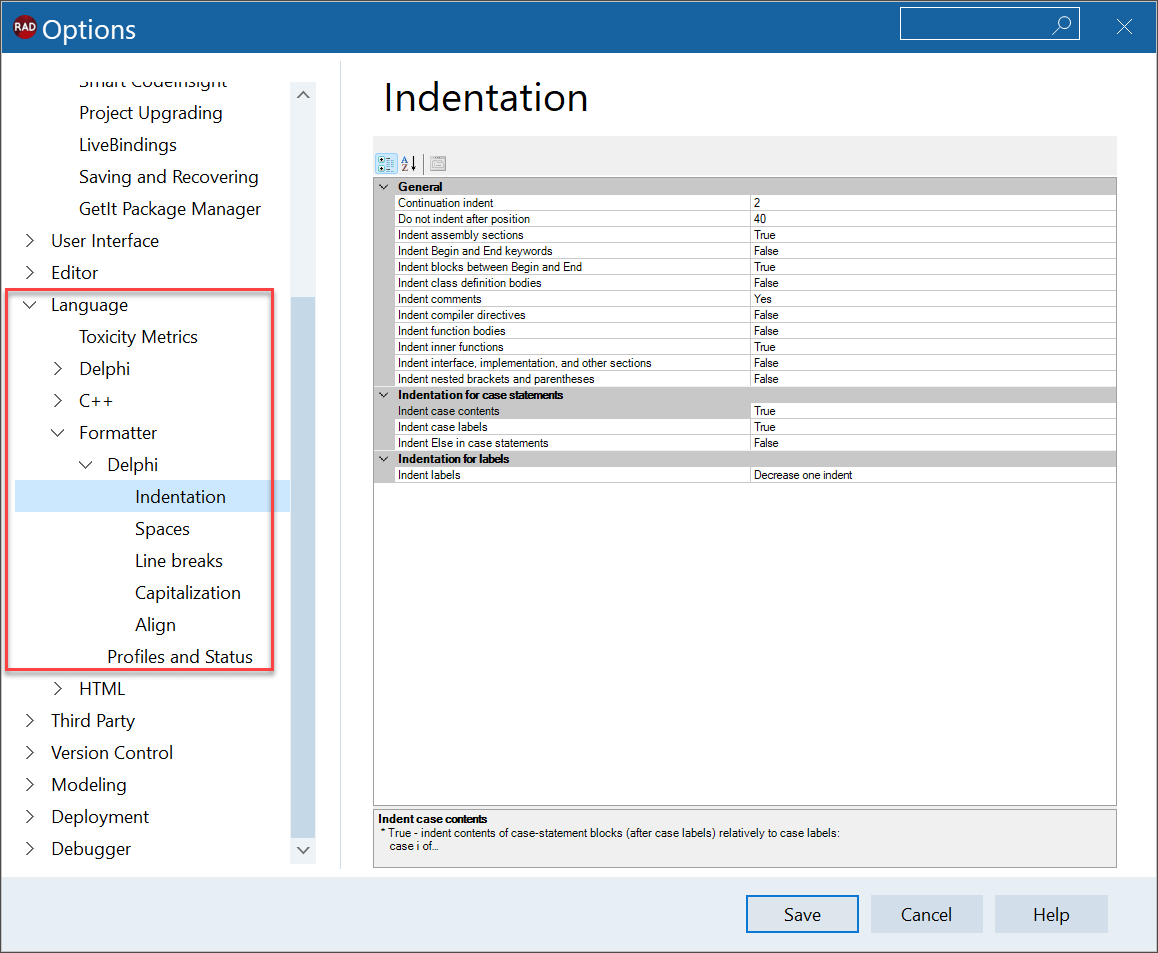
- Navigate to the
Profiles and Statusitem in the Delphi section of the tree and open click it to open.
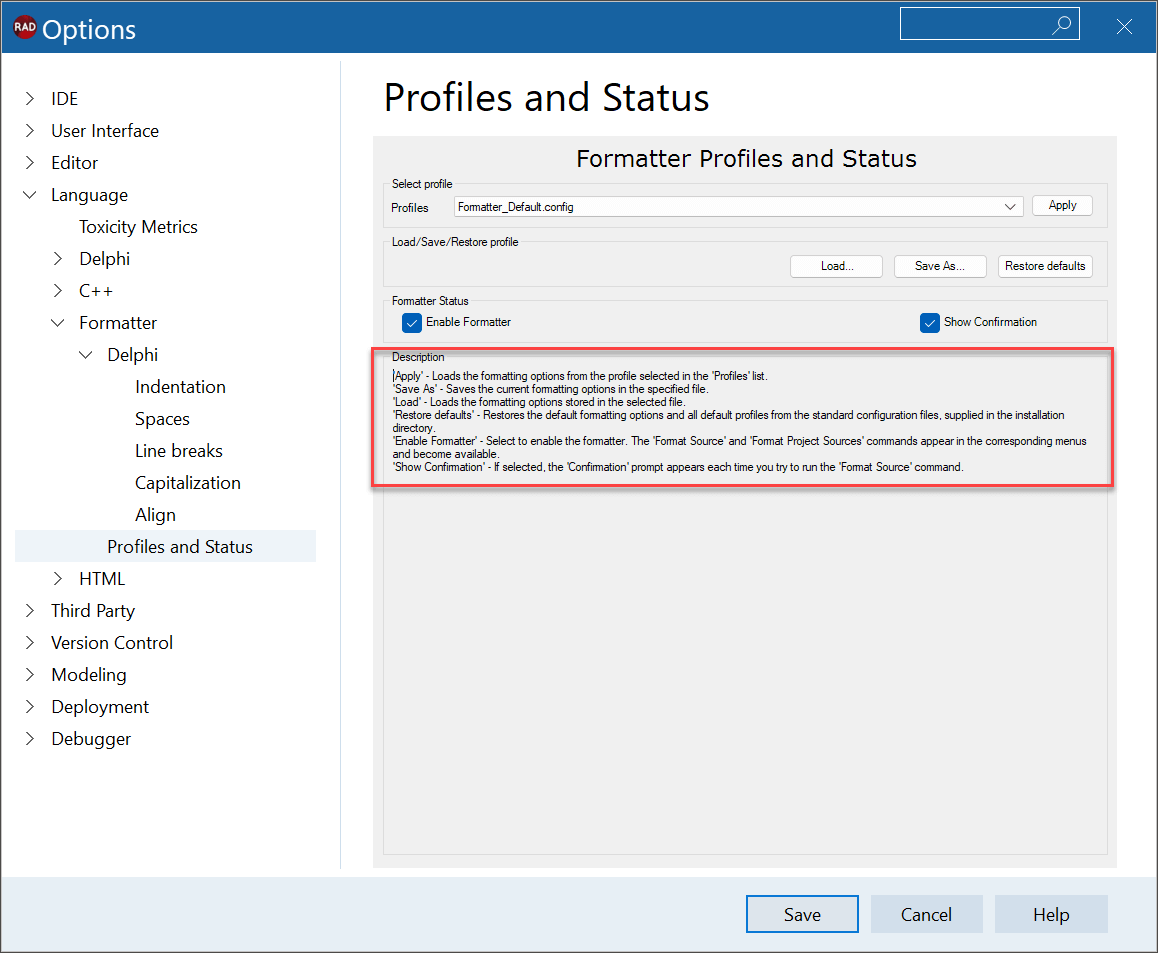
Note theDescriptionitem contains instructions on saving or modifying the current profile. - Click the
Save As...button. This is the button nearest the top of the form, not the lowerSavebutton. This launches theSave Asdialog.
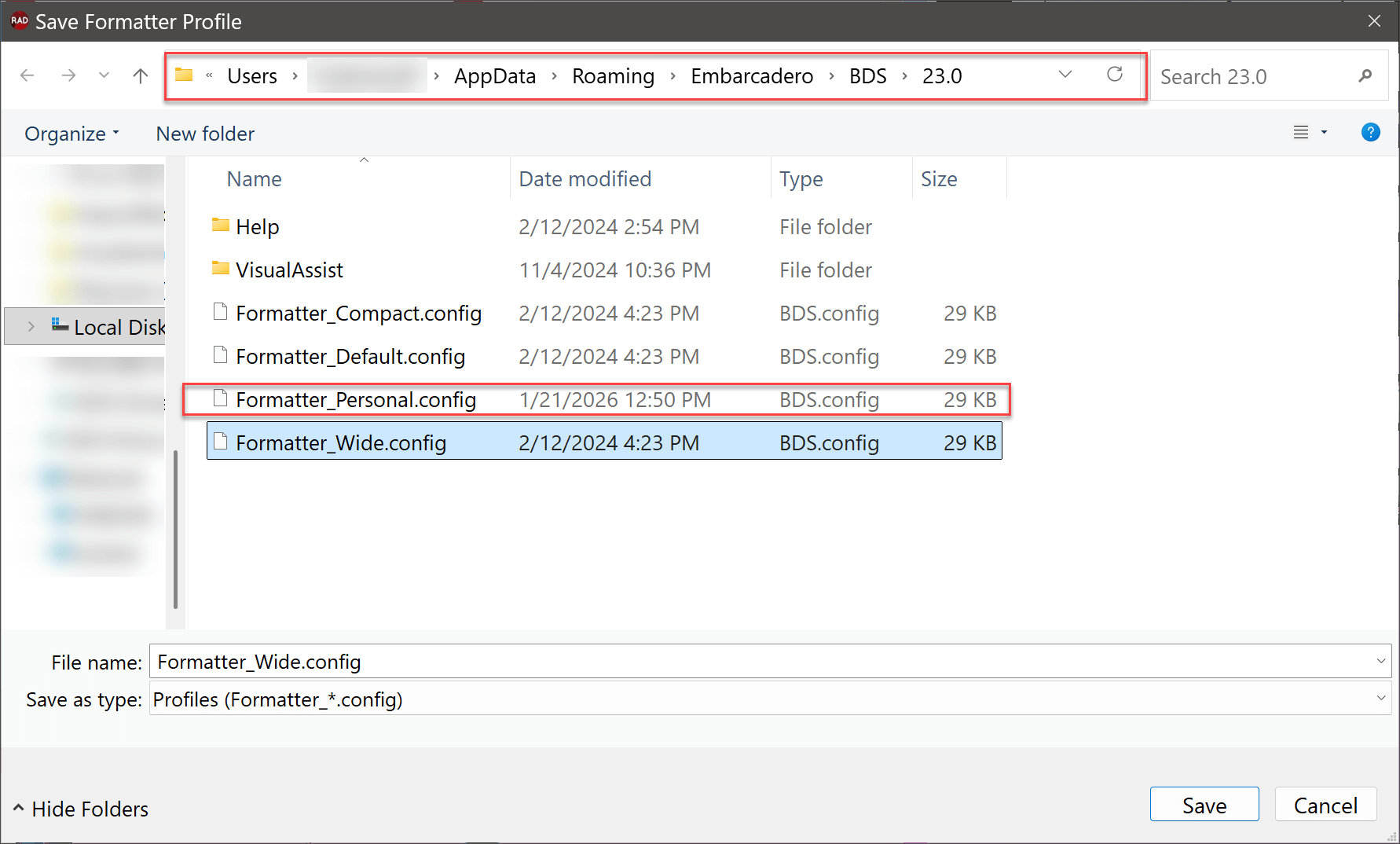
In this example I have called my Formatter parametersFormatter_Personal.config. You will probably find other Formatter parameters in the list as well. Be sure to remember how you have saved your desired parameters. The default location for saving is indicated in thePathinformation near the top of the form.
Obtain and Install Formatter.exe
The formatter program is an external program and can found by examining the Delphi Environment Variables item in the Options dialog of the IDE. Look for the BDSBIN variable. The value for BDSBIN will tell you where to look for Formatter.exe.
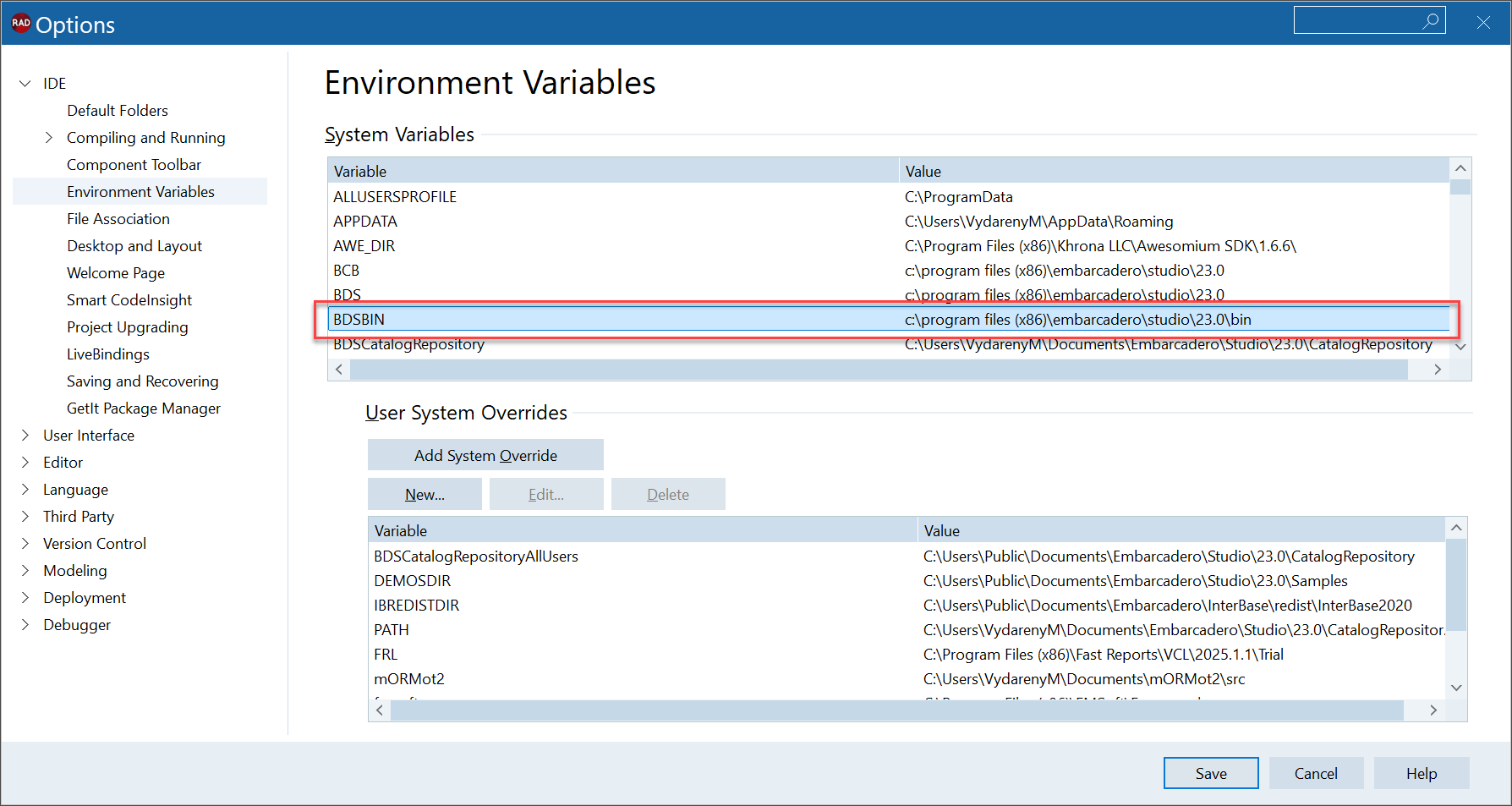
- Copy the Formatter.exe file to a convenient location that may be referenced by the RAD Studio IDE as it is being used.
I copy mine into the current RAD Studio \bin folder for the version of RAD Studio I'm using.
Note that there are two folders for RAD Studio binaries:
\bin\bin64
If you decide to put Formatter.exe in a Rad Studio binary folder it doesn't matter a great deal which you choose. However, Formatter.exe itself is a 32-bit application, so it might make sense to place it in the \bin folder just to avoid future confusion. It will run fine from a 64 bit version of the IDE since as an external program, it doesn't depend on integration into the launching program.
You can now exit your older version of RAD Studio.
Add IDE Integration
Begin by launching the version of RAD Studio where you intend to use the Formatter. Currently, this will be RAD Studio 13.
Follow these steps to enable the Formatter as an IDE Tool:
- From the main menu, click
Tools-->Configure Tools...to open the Tools Options dialog.
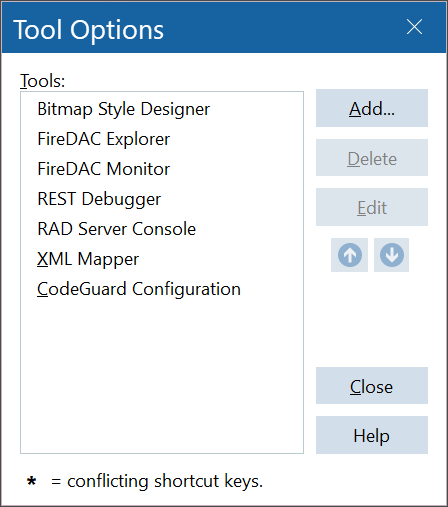
- Click the
Add...button to open theTool Propertiesdialog.
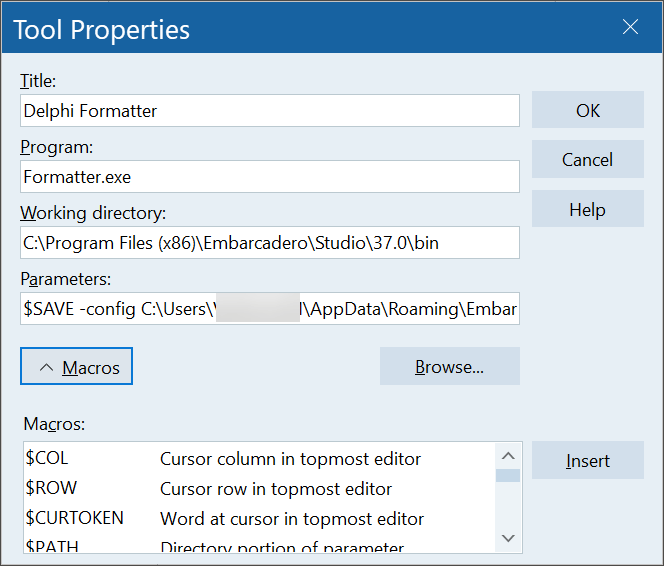
- Click the
Macrosbutton at the bottom of the form to display the Macro list. - Configure the
Tool Propertiesfields with the values needed to invoke the Formatter:
| Field Name | Contents | Example Content |
|---|---|---|
| Title | The Name of the Tool | Delphi Formatter |
| Program | The Name of the Formatter program. | Formatter.exe |
| Working Directory | The location of the Formatter program. | C:\Program Files (x86)\Embarcadero\Studio\37.0\bin |
| Parameters | The path and file name of the Formatter.config file saved earlier. Also $SAVE and $EDNAME macros. |
$SAVE |
- Click the
SAVEbutton to save theTool Properties. - Close any remaining dialog windows that are open. You have completed the configuration.
- It uses the
$SAVEmacro to force a save operation on the file about to be formatted. It invokes a dialog that will ask for permission to save the file. - The
$EDNAMEmacro provides theFormatter.exeprogram with the name of the file to be formatted. - Substitute the appropriate
UserNamefor the<UserName>token.
Using the Formatter
The Formatter formats an entire file according to the Formatter.config specification provided. Although in the original RAD Studio implementation it is possible to select a block of code for selective formatting, that functionality is not supported by this present implementation.
Steps to format a file:
- With the file to be formatted in the IDE Edit window, select
Options-->Tools--><Formatter_Name>from the menu dropdown list. - Respond to the
Savedialog if presented asking permission to save the current file in the IDE editor. RespondYESto continue with formatting. - The
Formatterwill run. After formatting is complete, theEditorwill note that the timestamp of the file has changed and ask permission to reload the modified code. RespondYESto reload the modified code.